⏰ 7 min read | August 14, 2026
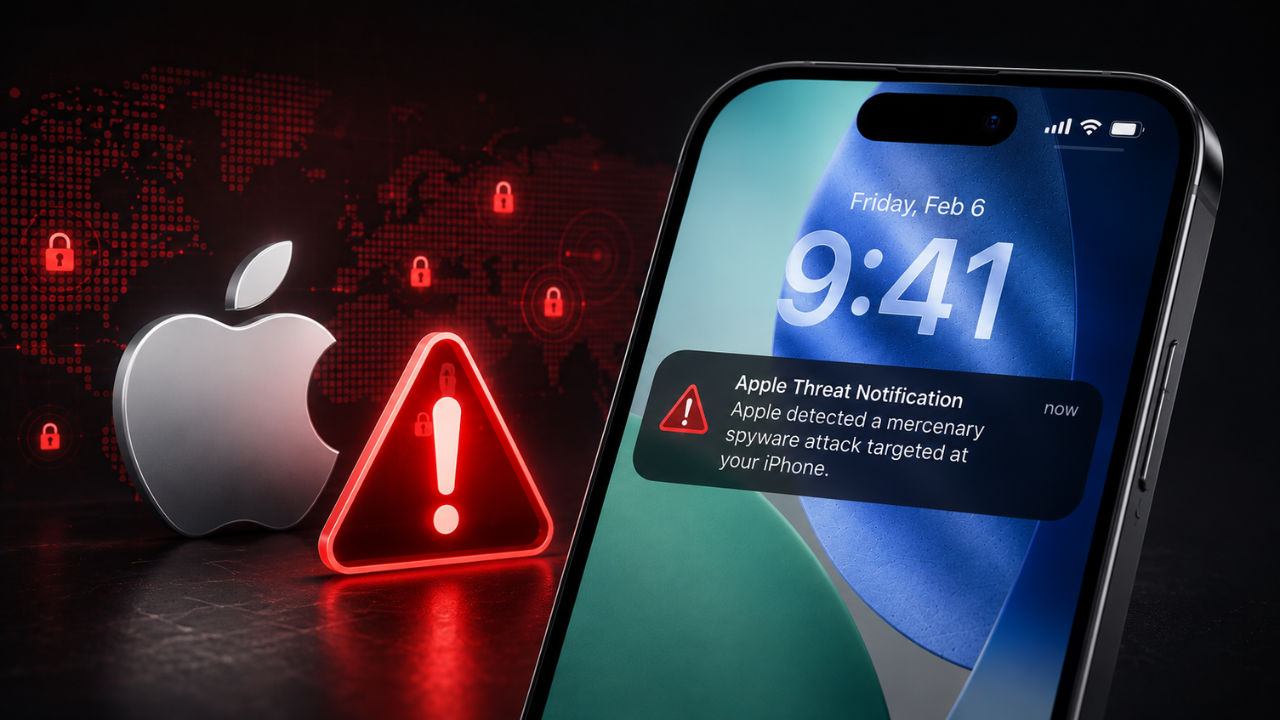
If you have just gotten an iPhone spyware alert from Apple, do not swipe it away and move on with your day — this is one notification that genuinely deserves five minutes of your attention. Apple recently pushed out a fresh wave of these warnings to iPhone owners in as many as 110 countries, telling them they may have been individually targeted by so-called mercenary spyware. It sounds like something out of a spy thriller, but it is a very real threat, and the good news is that Apple also tells you exactly what to do about it. Let’s break down what this alert actually means, how to tell a real one from a scam, and the simple steps that will keep your iPhone locked down.
What Is This iPhone Spyware Alert?
Apple has a standing threat notification system that fires off whenever its internal intelligence suggests someone has been targeted by state-linked, mercenary spyware. This is not your everyday malware that spreads to millions of random devices — mercenary spyware is expensive, precision-guided software, typically bought and deployed by governments or their contractors, aimed at journalists, activists, diplomats, lawyers, and other high-profile individuals. In this latest round, Apple notified affected users across 110 countries, a scale that shows just how global this kind of surveillance industry has become.
Did You Know? Apple has been sending these mercenary spyware warnings since 2021, and it has notified users in well over 150 countries in total since the programme began — this is simply the newest batch.
Getting the alert does not automatically mean spyware is sitting on your phone right now. Think of it as Apple saying, “we have high-confidence signals that you were a target,” which is exactly why it wants you to act quickly rather than wait around for more proof.
How Apple Actually Sends These Warnings
One of the most important things to understand is where these alerts actually show up. Genuine threat notifications only appear in three places: directly on your iPhone’s Lock Screen, inside the Settings app, and on your linked Apple Account email after you sign in. Apple also mirrors the same message when you log in manually at account.apple.com, which is the safest way to double-check that what you are seeing is legitimate.
Crucially, Apple has been very clear about what these notifications will never do. They will never ask you to click a link, download an attachment, install a random app or configuration profile, or type in your Apple Account password to “confirm” anything. If a message asking you to do any of that shows up in your inbox claiming to be from Apple, treat it as a scam trying to piggyback on real news of this alert.
Steps to Take the Moment You See It
So you have checked account.apple.com and confirmed the alert is real — what now? Apple and digital security experts recommend a short, focused list of actions rather than panic:
First, turn on Lockdown Mode straight away. It is buried in Settings under Privacy & Security, and it is specifically built to blunt the kind of sophisticated, targeted attacks mercenary spyware relies on. Second, make sure your iPhone is running the latest version of iOS, since spyware often exploits security holes that Apple has already patched in newer updates. Third, if you feel out of your depth, reach out to Access Now’s Digital Security Helpline — it is a free, independent service staffed by people who specialise in exactly this kind of targeted threat and can walk you through securing your device step by step.
None of these steps require technical expertise. They are all things you can do from your phone in under fifteen minutes, and together they meaningfully reduce your exposure.
How to Spot a Fake Spyware Alert
Whenever a security story like this makes headlines, scammers try to cash in by sending fake “spyware detected” messages of their own, hoping to scare people into clicking malicious links. The easiest way to protect yourself is to remember the golden rule above: real Apple alerts never ask for action through a link or attachment. If an email or text urges you to urgently click something, install a “removal tool,” or enter your Apple ID password on some third-party page, close it immediately and go straight to account.apple.com yourself to check your account status.
It also helps to remember that Apple never calls, texts, or emails you out of the blue asking for your password, one-time codes, or payment to “fix” a spyware infection. Any of those requests is an instant red flag, regardless of how official the message looks.
Long-Term Habits That Keep You Safer
Beyond reacting to this specific alert, Apple and security researchers point to a handful of habits that make it much harder for any attacker, mercenary spyware or otherwise, to get a foothold on your device. Keep your passcode and Face ID or Touch ID switched on at all times, since a locked phone is a much harder target. Turn on two-factor authentication for your Apple Account so a stolen password alone is not enough to break in. If you own a newer iPhone, enable Stolen Device Protection, which adds extra security delays for sensitive actions when your phone is away from familiar locations.
Stick to downloading apps only from the official App Store rather than sideloading from unknown sources, use strong and unique passwords or passkeys for every account, and be cautious about opening links or attachments from senders you do not recognise. None of this guarantees you will never be targeted, but it stacks the odds heavily in your favour.
| Specification | Details |
|---|---|
| Alert Type | Mercenary spyware threat notification |
| Where It Appears | Lock Screen, Settings app, account.apple.com |
| Countries Notified | 110 countries in this latest round |
| Devices Covered | iPhone, iPad, and Mac |
| Recommended Fix | Enable Lockdown Mode + update iOS immediately |
| Expert Support | Access Now Digital Security Helpline |
| Item | Detail |
|---|---|
| Original Price | Free (built into every iPhone) |
| Current Price | Free — no purchase or subscription needed |
| Bank Card Offer | Not applicable |
| EMI | Not applicable |
| Exchange | Not applicable — available to all eligible Apple Account holders |
Frequently Asked Questions
It means Apple believes you may have been individually targeted by mercenary spyware, the kind of surveillance tool usually linked to state-backed operations. It does not mean your phone is already infected — it is an early warning so you can lock things down fast.
Genuine alerts only ever appear on your Lock Screen, inside Settings, or after you sign in directly at account.apple.com. Apple will never ask you to click a link, open an attachment, install a profile or app, or hand over your Apple Account password to “verify” the threat.
Sign in at account.apple.com to confirm the notification is real, turn on Lockdown Mode, update iOS to the latest version, and reach out to Access Now’s free Digital Security Helpline if you need expert hand-holding.
No single feature is a silver bullet, but Lockdown Mode drastically shrinks the ways sophisticated spyware can sneak in by disabling risky attachment previews, complex web technologies, and unsolicited connections, making high-end targeted attacks far harder to pull off.
Apple sent this round of mercenary spyware threat notifications to users across 110 countries, underlining just how widespread and borderless this kind of targeted surveillance has become.
Verdict: Take It Seriously, But Don’t Panic
An iPhone spyware alert from Apple is not the kind of notification you dismiss and forget. It is one of the very few security warnings that comes with a clear, actionable playbook — verify it at account.apple.com, flip on Lockdown Mode, update your software, and call in expert help if you need it. Most people will never see this alert, but if you do, the smartest response is calm, quick action rather than panic or, worse, ignoring it. Staying informed about threats like this is exactly why it pays to keep up with trusted tech coverage. For more explainers like this one, keep following JatinTechTalks for the latest in mobile security and tech news.
```


No comments:
Post a Comment